

LET’S GET STARTED
LET’S GET STARTED
This walks your team through confirming everything’s running the way it should. That means screens on, compartments lit, a test order run start to finish — so day one is just another day, not a scramble. Follow the three steps below in order. Contact Apex Support if anything doesn’t look or work as expected before putting lockers into service. These steps take about 10-15 minutes. And it’s worth every one of them before students are expecting them to work.
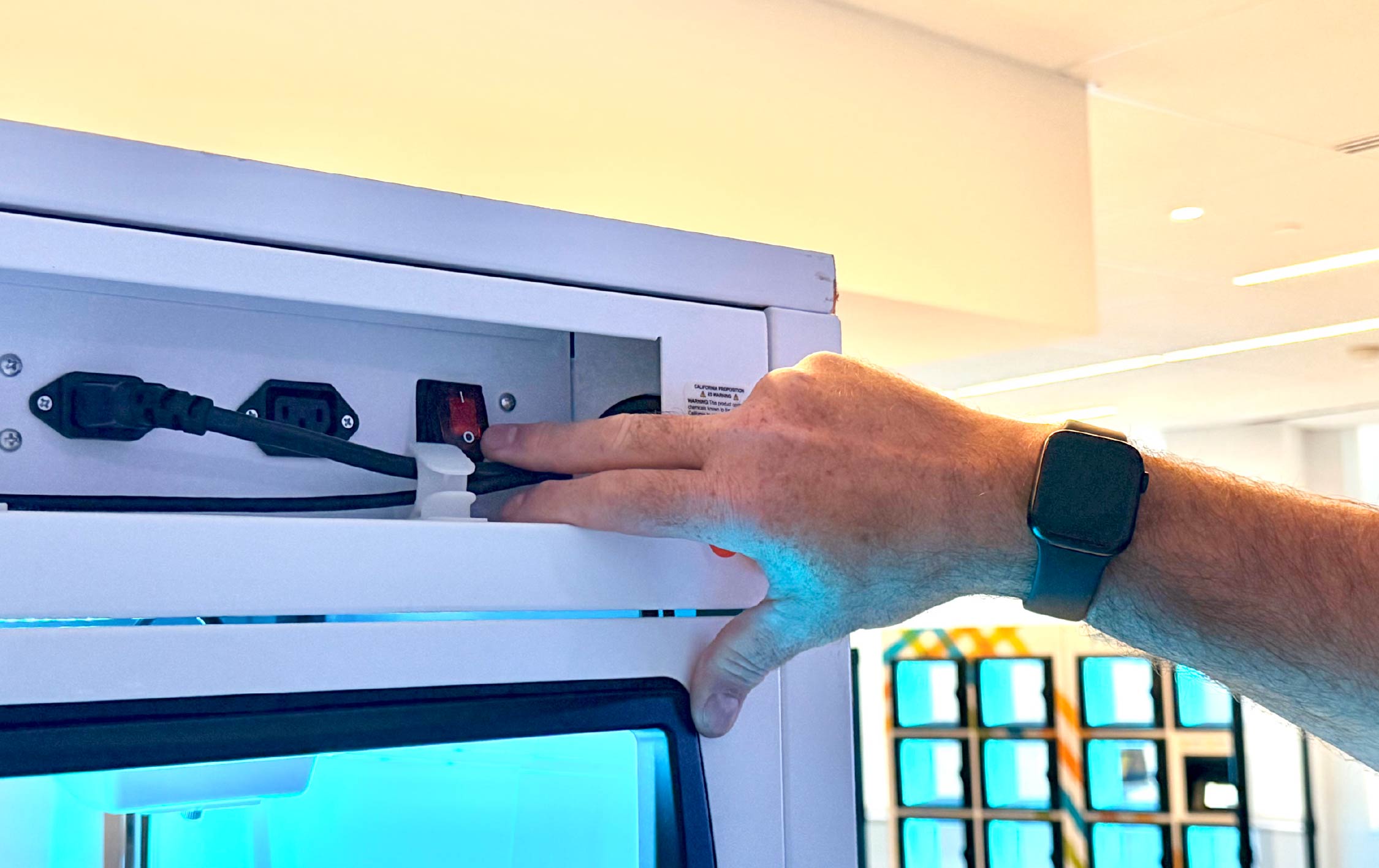
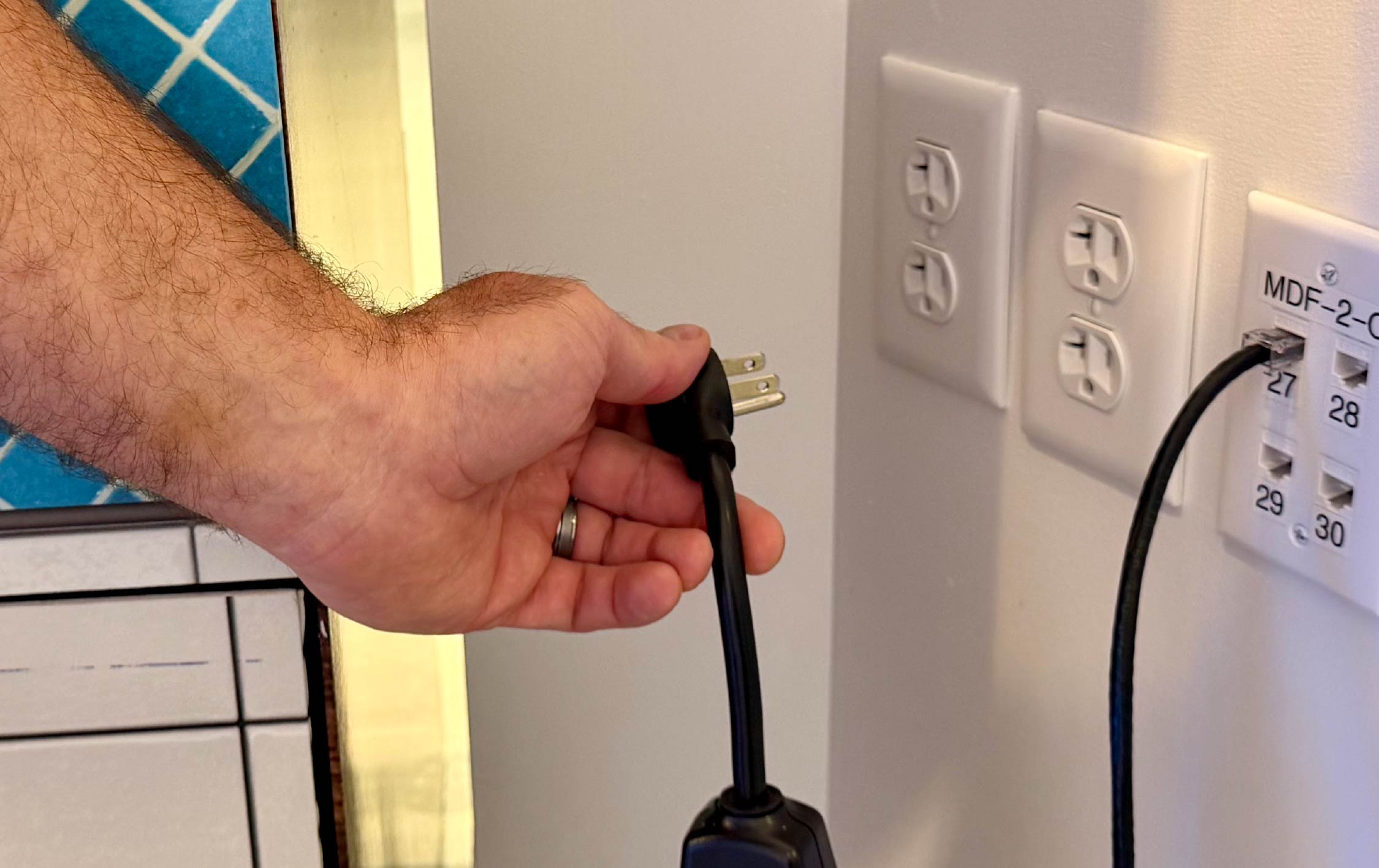
Restart the Locker System
Clears the system before student use begins.
1. Turn the locker off by unplugging it from the wall or turning off the switch on the power strip. Make sure all locker screens (including any separate mounted display screens) turn off.
2. Wait 30 seconds before turning the power back on.
3. Allow up to 10 minutes for the system to fully start up. It may appear fully booted but incomplete — compartment illumination is one of the last indicators of a system restart
General Inspection
Confirms hardware is responding as expected.
1. Confirm screens are powered on and responsive to touch.
2. Ensure all compartments show the expected, predetermined lighting.
3. If the locker is a newer product version with a “Locker Status” page on the order entry screen:
- Test enabling and disabling a position.
- Select each compartment and choose to open all doors of the device. Each door from the virtual status screen should open the intended corresponding physical compartment.


Complete a Test Order
Verifies the full pickup workflow end to end.
1. Create a test order in the same manner you expect normal operations’ workflow.
2. Load the order into the locker following the workflow specific to this locker’s solution design.
3. Perform a full pickup using the normal customer process, using any code scanners when applicable.
Get the complete Pre-Semester Readiness Checklist to make sure your campus is prepared for back-to-school traffic and your order pickup process is optimized for a smooth student experience.
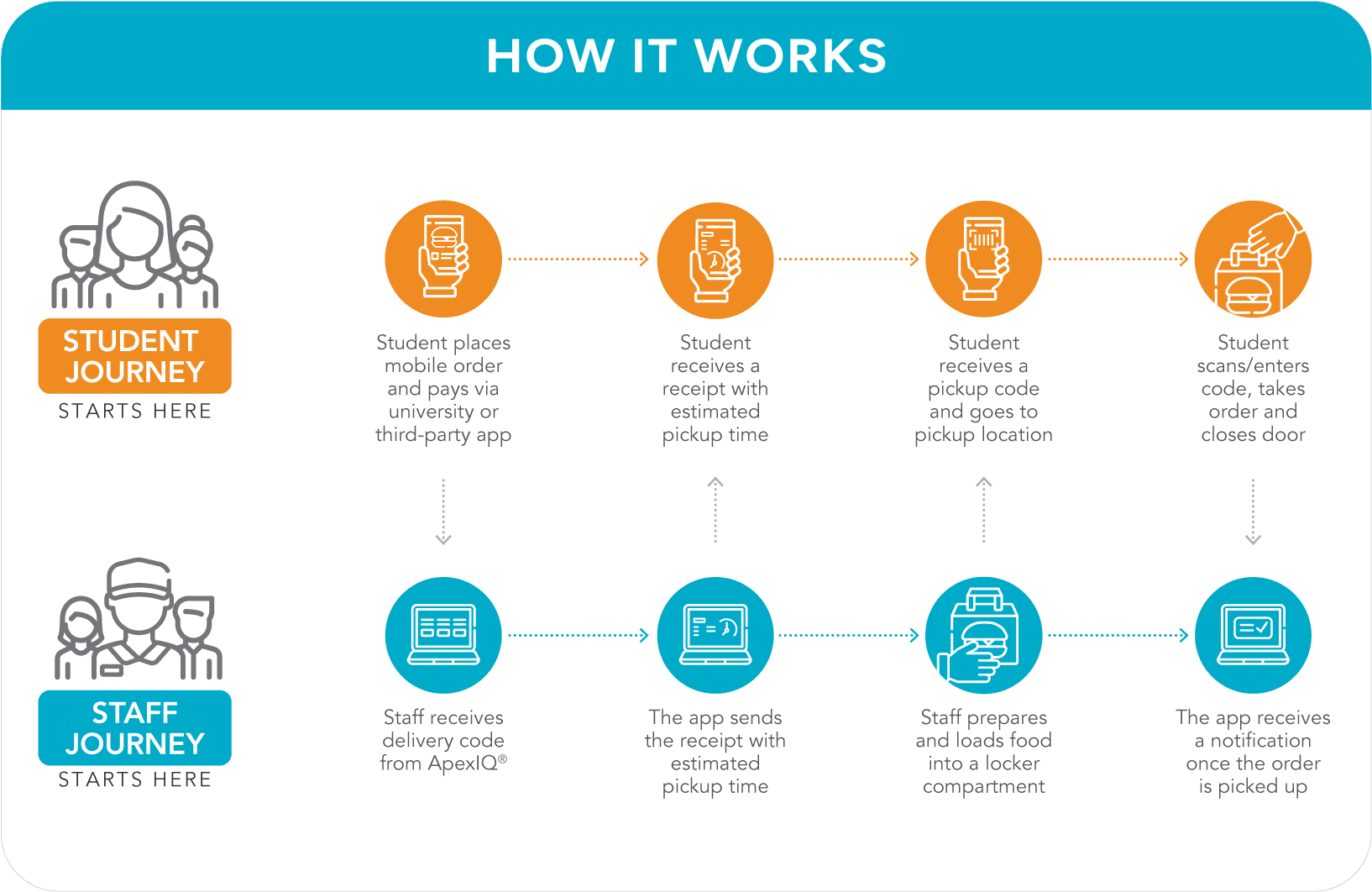
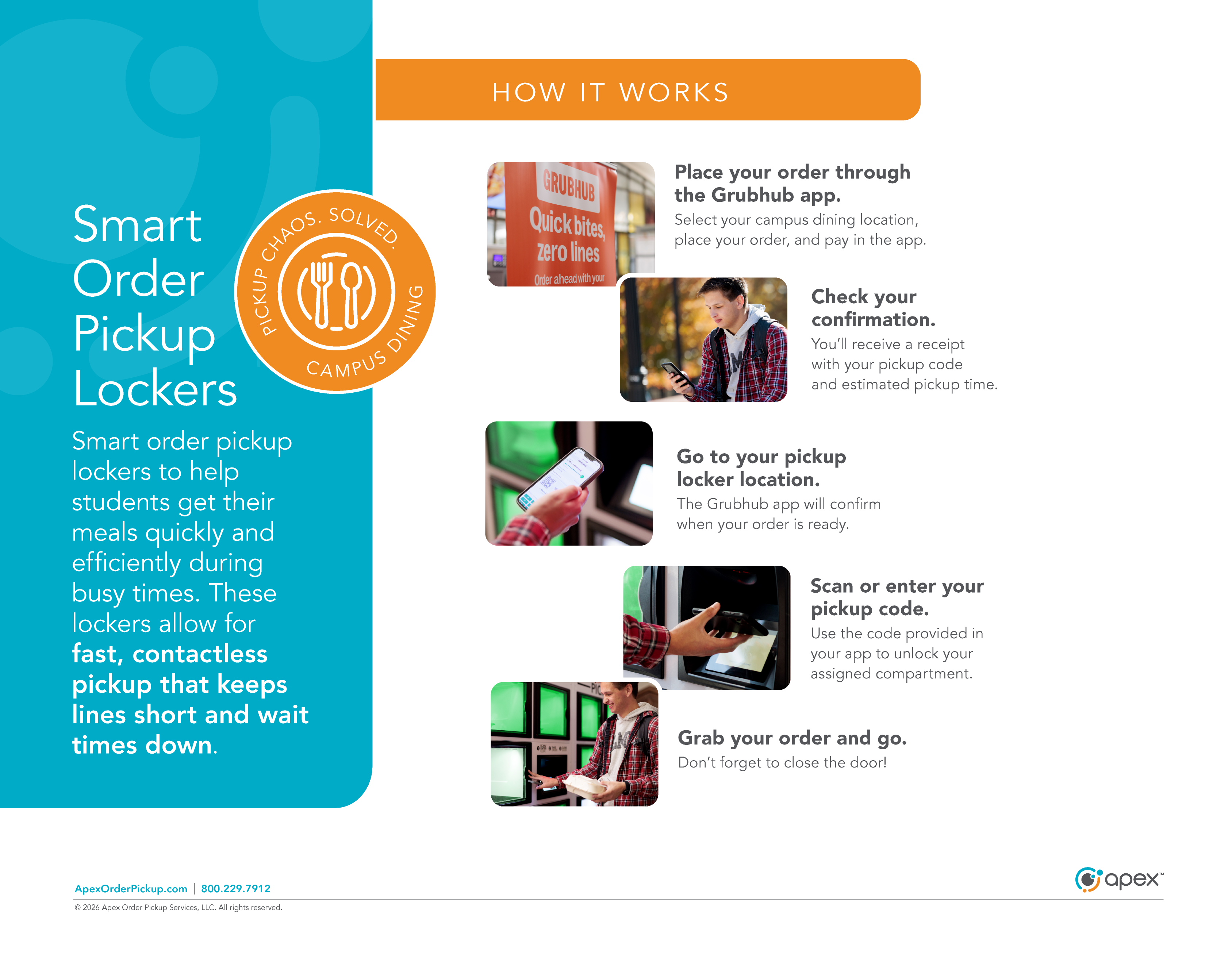
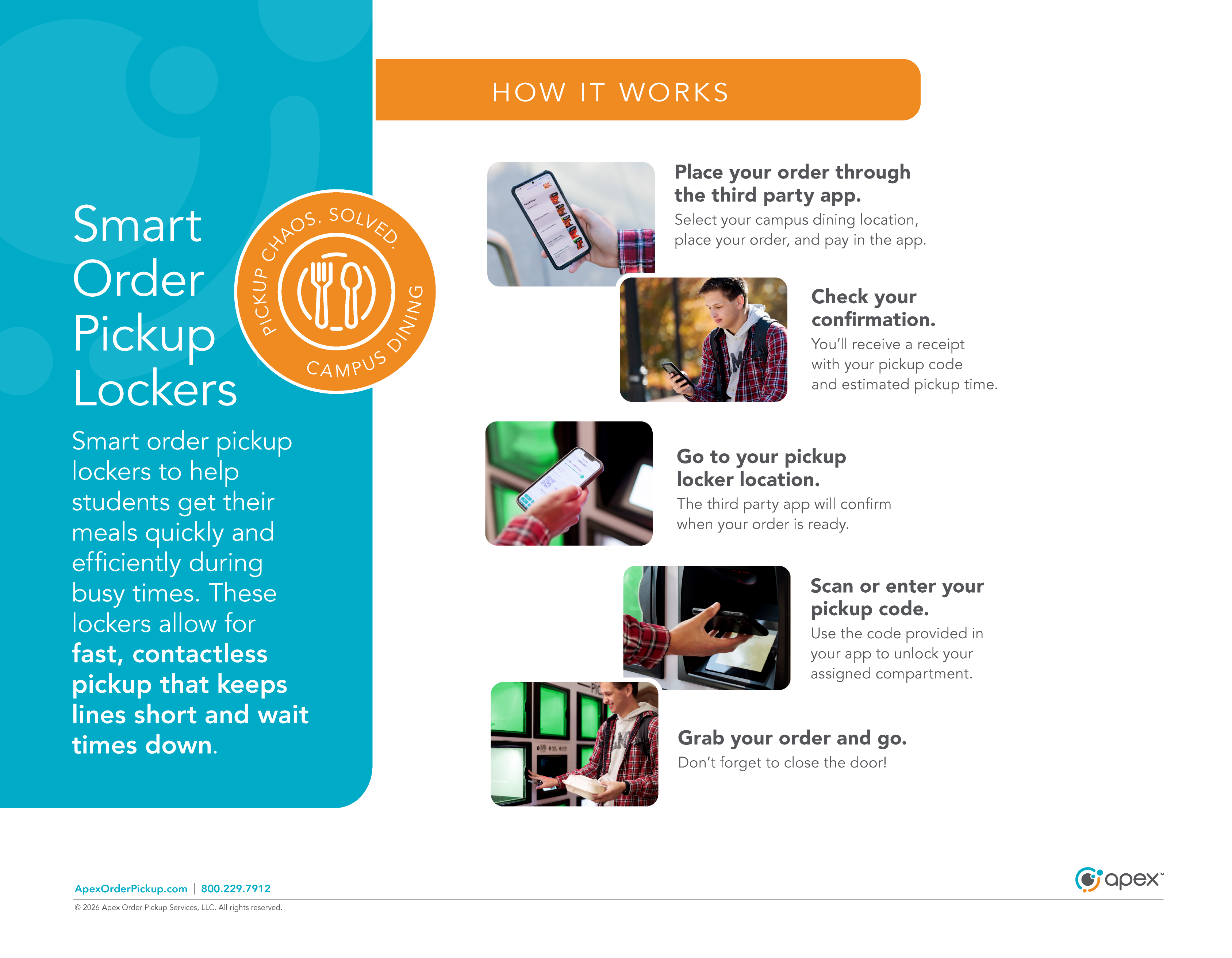
Whether you’re using Grubhub or another supported mobile ordering platform, we’ve got you covered. Download the appropriate ordering instructions below to get up and running quickly.
BEFORE GOING LIVE
Contact Apex Support before using the lockers for intended operations if anything doesn’t look or work as expected. This includes screens not working, doors not opening, or problems completing a test order.

Heading to NACAS? Come see us at Booth #418 to explore smarter order pickup solutions designed for today’s campus dining operations.

QUESTIONS OR CONCERNS?
Apex Technical Support: 1-800-229-7912, option #3 support@apexorderpickup.com